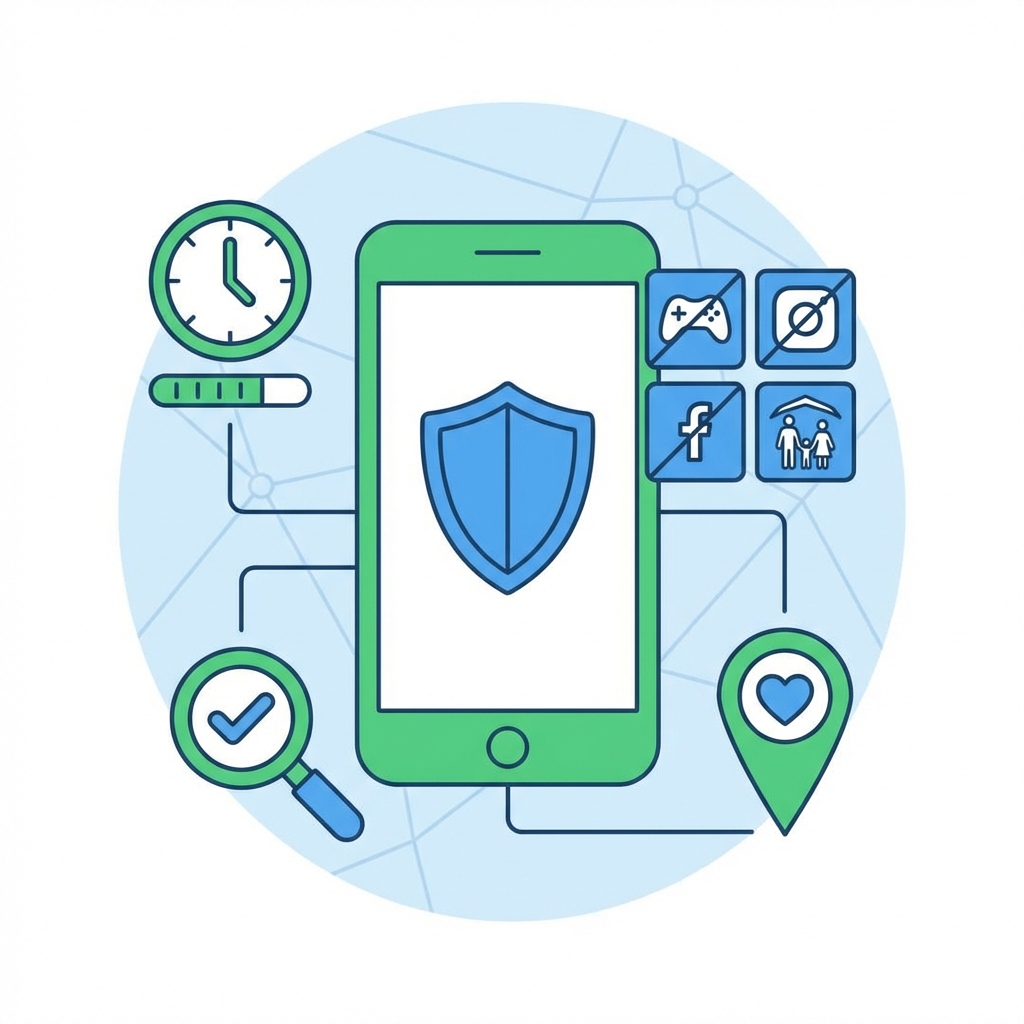
Android offers robust built-in parental controls through Google Family Link and device settings. Combined with third-party monitoring apps, parents can create a comprehensive safety environment for children. This guide covers every Android parental control option available in 2026.
Understanding Android Parental Control Options
Android provides both native and third-party solutions for protecting children online.
Built-in vs Third-Party Controls
| Feature | Google Family Link | Third-Party Apps |
|---|---|---|
| App installation control | ✓ | ✓ |
| Screen time limits | ✓ | ✓ |
| Location tracking | ✓ | ✓ Advanced |
| Content filtering | Basic | Advanced |
| Message monitoring | ✗ | ✓ |
| Social media tracking | ✗ | ✓ |
| Keylogger | ✗ | ✓ |
| Stealth operation | ✗ | ✓ |
Setting Up Google Family Link
Family Link is Google’s free parental control solution for Android.
Step 1: Install Family Link
On Parent’s Device:
- Download Google Family Link (Parent) from Play Store
- Sign in with your Google account
- Choose “Parent” when prompted
On Child’s Device:
- If new device: Set up with child’s Google account during setup
- If existing device: Add parent supervision in Settings
Step 2: Create or Add Child Account
For Children Under 13:
- Open Family Link
- Tap “Set up Family Link”
- Create new Google account for child
- Follow account creation steps
- Verify with your payment method
For Children 13+:
- Child can consent to supervision
- Link existing Google account
- Parent sends supervision request
- Child accepts in their settings
Step 3: Configure App Controls
Managing App Installation:
- Open Family Link on your device
- Select your child
- Tap “Controls” → “Google Play”
- Choose “Require approval for”:
- All content
- Paid content only
- In-app purchases
Content Restrictions:
- Settings → Content restrictions
- Set age ratings for:
- Apps and games
- Movies
- TV shows
- Books
- Music
Step 4: Set Screen Time Limits
Daily Limits:
- Controls → Screen time
- Toggle on “Daily limit”
- Set hours per day
- Customize by day of week
Bedtime Settings:
- Tap “Bedtime”
- Set sleep schedule
- Device locks during these hours
- Exceptions can be made
Step 5: Location Tracking
Enable Location:
- Controls → Location
- Toggle on “See your child’s location”
- View in Family Link app
- Set up location alerts
Step 6: Manage Specific Apps
Block or Allow Apps:
- Go to child’s profile
- Tap “Apps installed”
- Select specific app
- Set time limits or block entirely
Third-Party Android Monitoring Apps
For deeper monitoring beyond Family Link’s capabilities.
mSpy - Comprehensive Android Monitoring
mSpy provides complete Android surveillance.
Android Features:
- All social media monitoring (25+ apps)
- Complete message access
- Keylogger
- GPS tracking with history
- Call recording and logs
- Browser history
- Photo and video access
- Screen recording
- App blocking
- Stealth mode
Why Choose mSpy: Family Link shows what apps are used, but mSpy shows what happens inside them—every message, photo, and conversation.
Pricing: From $11.66/month
Eyezy - AI-Powered Android Monitoring
Eyezy brings intelligent monitoring to Android.
Android Features:
- Social Spotlight for all apps
- Magic Alerts with AI
- Keylogger
- Location tracking
- Screen time management
- App blocking
- Invisible mode
Unique Feature: Eyezy’s AI analyzes content patterns and alerts you to concerns automatically.
Pricing: From $9.99/month
Parentaler - Family-Focused Solution
Parentaler offers Android monitoring designed for families.
Android Features:
- Screen time control
- App blocking
- Location tracking
- Content filtering
- Simple parent dashboard
- Multiple child profiles
Pricing: From $9.99/month
Installing Third-Party Monitoring on Android
Step-by-step installation guide.
Pre-Installation
Requirements:
- Physical access to child’s Android phone
- 15-20 minutes for setup
- Device passcode/pattern known
- Internet connection
Installation Steps
Step 1: Prepare the Device
- Go to Settings → Security
- Enable “Install unknown apps” for browser
- Or Settings → Apps → Special access → Install unknown apps
- Disable Google Play Protect temporarily
Step 2: Create Account
- Visit chosen app’s website on computer
- Create parent account
- Purchase subscription
- Receive installation link via email
Step 3: Install on Child’s Device
- Open email on child’s device
- Tap download link
- Download APK file
- Open downloaded file
- Tap “Install”
- Wait for installation
Step 4: Grant Permissions
- Open the monitoring app
- Log in with your credentials
- Grant all requested permissions:
- Accessibility Service (required)
- Usage access
- Notification access
- Location access
- Storage access
- Phone and SMS access
Step 5: Configure Settings
- Enable features you want
- Set up alerts and keywords
- Configure sync frequency
- Test notifications
Step 6: Enable Stealth Mode
- Open app settings
- Toggle “Hide icon” or “Stealth mode”
- App becomes invisible
- Verify by checking app drawer
Post-Installation Verification
- Send test message to child’s phone
- Check your dashboard for the message
- Verify GPS shows correct location
- Confirm all features working
Age-Appropriate Settings
Recommendations by age group.
Ages 5-8
Family Link Settings:
- All app installations require approval
- Maximum 1-2 hours screen time
- Bedtime at 7:00 PM
- All content restricted to age 8+
- Location always on
Third-Party:
- May not be necessary at this age
- Basic monitoring if needed
Ages 9-12
Family Link Settings:
- Most apps require approval
- 2 hours screen time (weekdays)
- 3 hours screen time (weekends)
- Bedtime at 8:00 PM
- Teen content restricted
Third-Party:
- Consider adding mSpy for message visibility
- Monitor social media if allowed
- Keyword alerts for concerning content
Ages 13-15
Family Link Settings:
- Key apps require approval
- 3 hours screen time flexible
- Bedtime at 9:00 PM
- Mature content restricted
Third-Party:
- mSpy for social media monitoring
- Message oversight important
- Location tracking essential
- Balance monitoring with trust
Ages 16-17
Family Link Settings:
- Consider more autonomy
- Flexible screen time
- Location sharing maintained
- Open discussions about content
Third-Party:
- Continue monitoring if needed
- Focus on safety features
- Prepare for eventual independence
Frequently Asked Questions
Can my child disable Google Family Link?
Children under 13 cannot remove supervision without parent approval. Teens 13+ can request to remove supervision, but parents receive notification and have 24 hours to respond. Removing supervision factory resets the device.
Will my child know about third-party monitoring apps?
Quality monitoring apps like mSpy operate in stealth mode. There’s no app icon, and the app runs invisibly. However, transparency often works better with older children.
How does Family Link differ from Samsung Kids or other manufacturer controls?
Family Link is Google’s solution that works on any Android device. Samsung Kids and similar are manufacturer-specific. You can use both together, with Family Link providing Google account control and manufacturer features adding device-level restrictions.
Can I see what my child types in apps?
Google Family Link cannot see message content. For keystroke monitoring, you need a third-party app like mSpy that includes a keylogger feature.
What if my child has multiple Android devices?
Family Link can manage multiple devices under one child account. Third-party apps typically require separate installations but can be viewed from one dashboard.
Does Android parental control work without internet?
Screen time limits and app blocking work offline. Location tracking and content syncing require internet connection.
Conclusion
Android provides excellent parental control options, from Google’s free Family Link to comprehensive third-party monitoring. The right combination depends on your child’s age, maturity, and specific concerns.
Our recommendations:
- Start with Family Link: Free, effective, covers basics
- Add mSpy for visibility: See inside apps and messages
- Use Eyezy for automation: AI alerts reduce review time
- Maintain communication: Technical controls complement, not replace, parental dialogue
The goal is creating a safe digital environment while gradually building your child’s ability to navigate it independently.